Install the widget
Add the Kognit chat widget to any website with a single script tag.
On this page
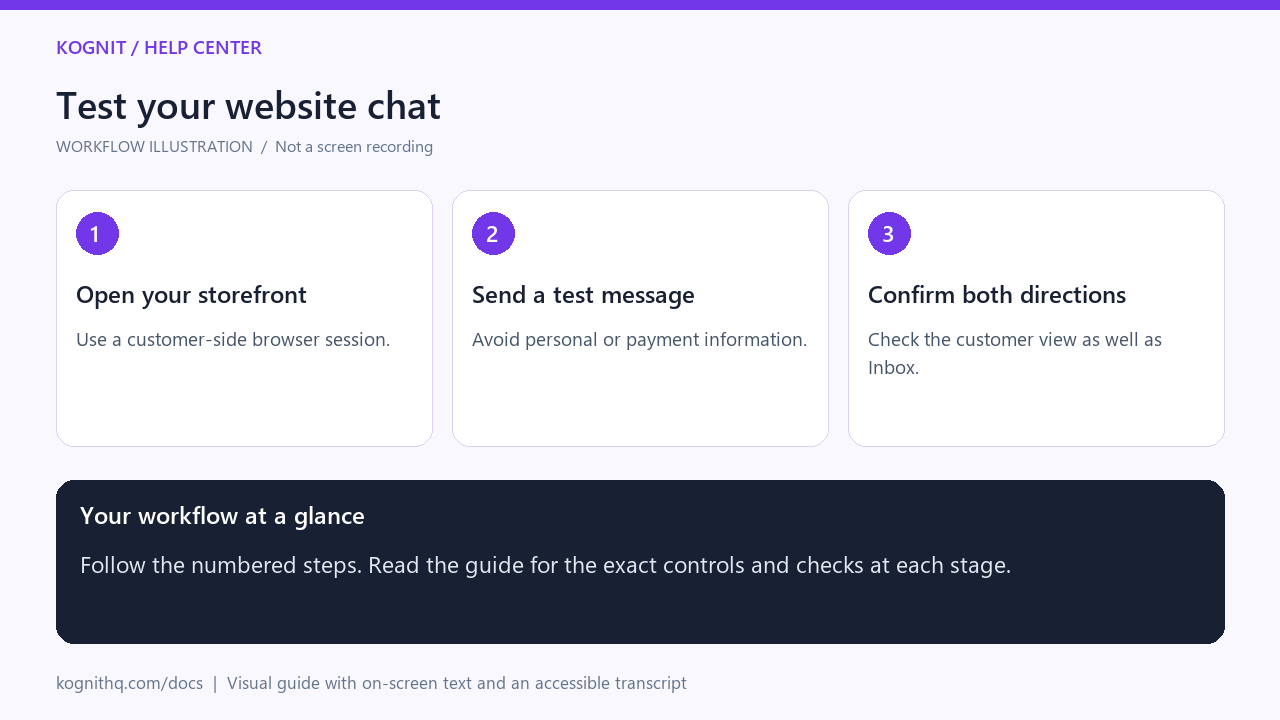
Watch: Test your website chat
18 seconds · Captioned workflow illustration, not a screen recording. No audio.
View the annotated workflow diagram
Read the video transcript
- Open your storefront. Open the page where the chat widget is installed and locate the chat launcher.
- Send a test message. Open the widget and send a short question that your team can recognize as a test.
- Confirm both directions. Find the message in Inbox, send a reply, and confirm it appears in the website chat.
Get your snippet
Open Widget in the app. Your embed snippet is shown with your workspace's public key already filled in:
<script
  src="https://kognithq.com/widget.js"
  data-kognit-key="YOUR_PUBLIC_KEY"
  async
></script>
Paste it before the closing </body> tag on every page you want the widget on.
Platform instructions
Shopify
- Online Store → Themes → Edit code
- Open
layout/theme.liquid - Paste the snippet immediately before
</body> - Save
WordPress / WooCommerce
Either paste it into your theme's footer template, or use any "insert header and footer scripts" plugin and add it to the footer.
Webflow
Project settings → Custom code → Footer code, paste, and republish.
Next.js / React
Render the script in your root layout, or inject it once on mount. Load it async so it never blocks your page.
The public key is public
The key in the snippet identifies your workspace and is visible to anyone who views your page source. That is expected and safe — it grants nothing except the ability to start a chat with you.
It is not an API key and cannot read your tickets, contacts, or settings. See Widget security.
Verify the install
Load your site in a private window. The launcher should appear within a second or two. Send a message and confirm a ticket lands in Inbox.
If nothing appears, see Test the widget.
Performance
The script loads asynchronously and does not block rendering. The widget interface is only fetched when a visitor opens it, so pages where nobody chats pay almost nothing.
Related